![hubert_logo_lockup_dark_transparent-01.png]](https://help.hubert.ai/hs-fs/hubfs/hubert_logo_lockup_dark_transparent-01.png?height=50&name=hubert_logo_lockup_dark_transparent-01.png)
To add Hubert to your standard workflow in Teamtailor we recommend you create a job template that includes the Hubert trigger and has all needed process stages. Once that is done you can easily use the template on new job requisitions to have everything you need pre-set.
How do I create a job template in Teamtailor?
Follow the steps in this guide: https://support.teamtailor.com/en/articles/864900-work-with-job-templates
Which stages do I need?
For Hubert to function as smoothly as possible, the following stages are recommended:
Inbox (Standard)
→ Hubert — Not Qualified (does not meet requirements)
→ Hubert — Passed (low score)
→ Hubert — Leads (to be reviewed)
→ Hubert — Accepted Leads (next step)
Image of an example below:
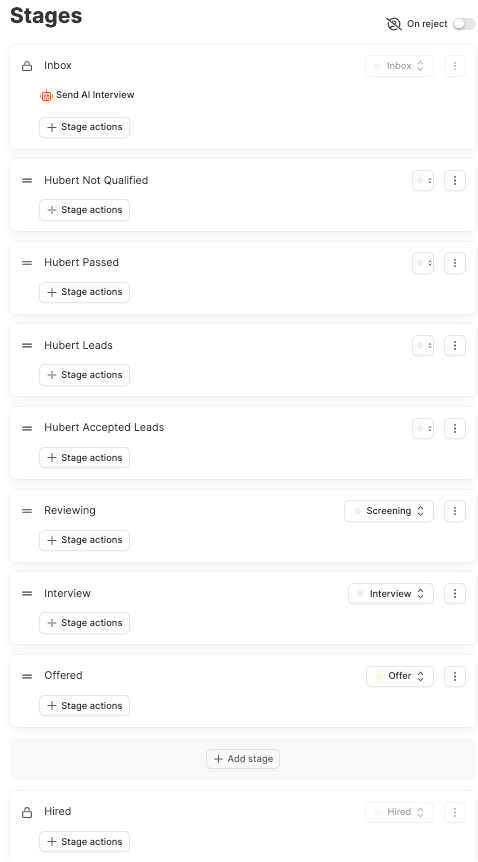
You can name the stages to your heart's content. Just make sure you clarify each corresponding stage in the trigger setup.
How do I add the Hubert trigger to a job/process?
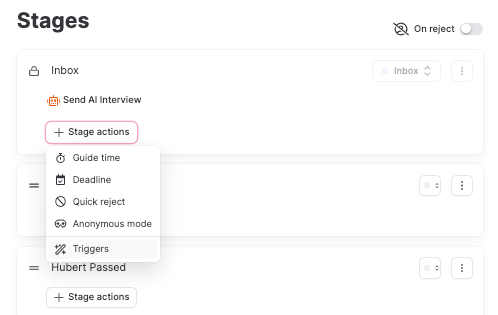
To add Hubert as an automatic trigger select ‘Stage Actions’ at the appropriate stage and ‘Triggers’. See the image below as a visual.
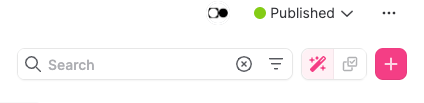
You can also add a trigger to an existing project. Just use the magic wand (see images below)!
Step 1. Click the magic wand to the right of the search bar!
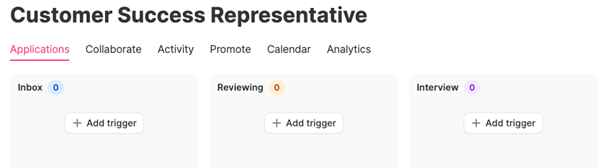
Step 2. Add a trigger to your Inbox!
Step 3. Choose the Send AI Interview by Hubert.ai trigger!
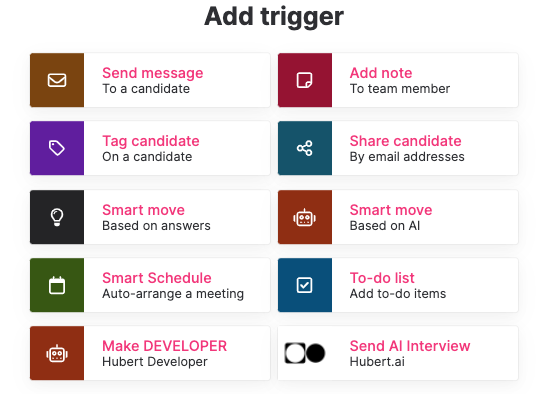
This takes you to the trigger setup dialog box which is described in the next section.
How to set the Hubert trigger correctly in Teamtailor?
When starting a new recruitment project in Teamtailor from a template or copying an existing job, be certain to adjust the Hubert trigger - even if the trigger is automatically added.
When adding the Hubert trigger, this is what the dialog box for the trigger setup looks like:
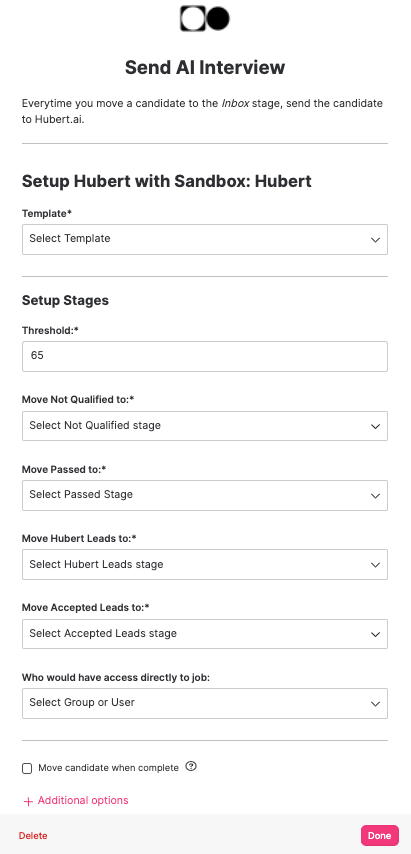
Step 1. Start by choosing the interview template that you would like to use for the job/process. If a template is missing, please reach out to us and we will set you up.
Step 2. Choose a threshold.
What's the threshold?
A way to distinguish between passed candidates and leads and the stages to which candidates will be moved.
Step 3. Link the stages so Hubert can take action
Example:
Select the stage you defined for candidates not fulfilling the minimal requirements (e.g. Hubert Not Qualified)
Step 4. Finally, select which users or groups that should have direct access to the job in question.
NOTE:
Do NOT tick the box ‘move candidates when complete’ unless you are specifically instructed to do so. Our recommendation is also to not set a delay time for the trigger.
How to write a great thanks-for-applying message
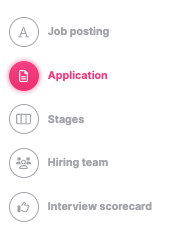
When setting up a new job or job template, it is very important to let the candidates know about the next step in the process. This will prepare the candidate and significantly boost the response rates. To edit the automated response message go to the ‘Application’-stage in the job setup.
Here is a good template that many of our customers use (please adjust to your language):
Email title:
Your interview! - Next step in your recruitment process
Email body:
Hey {first-name}!
We really appreciate your interest in working with us!
The next step in our application process is getting to know our virtual recruitment assistant Hubert through a chat-based interview. You'll soon receive an invitation from hubert@hubert.ai in your inbox. Please check your spam inbox if you haven't received the email within 10 minutes.
To increase your chances of rapid advancement, we kindly ask you to complete the digital chat interview as soon as possible. Please note that this is a mandatory step in the process.
Good luck!